Self-Hosting Forgejo — A Lightweight Git Server on Alpine Linux
GitHub alternatives, self-hosted. Forgejo runs on 512MB RAM, stores repos on Ceph, and sits behind NGINX. Here's the full setup including a three-layer 502 debug session.
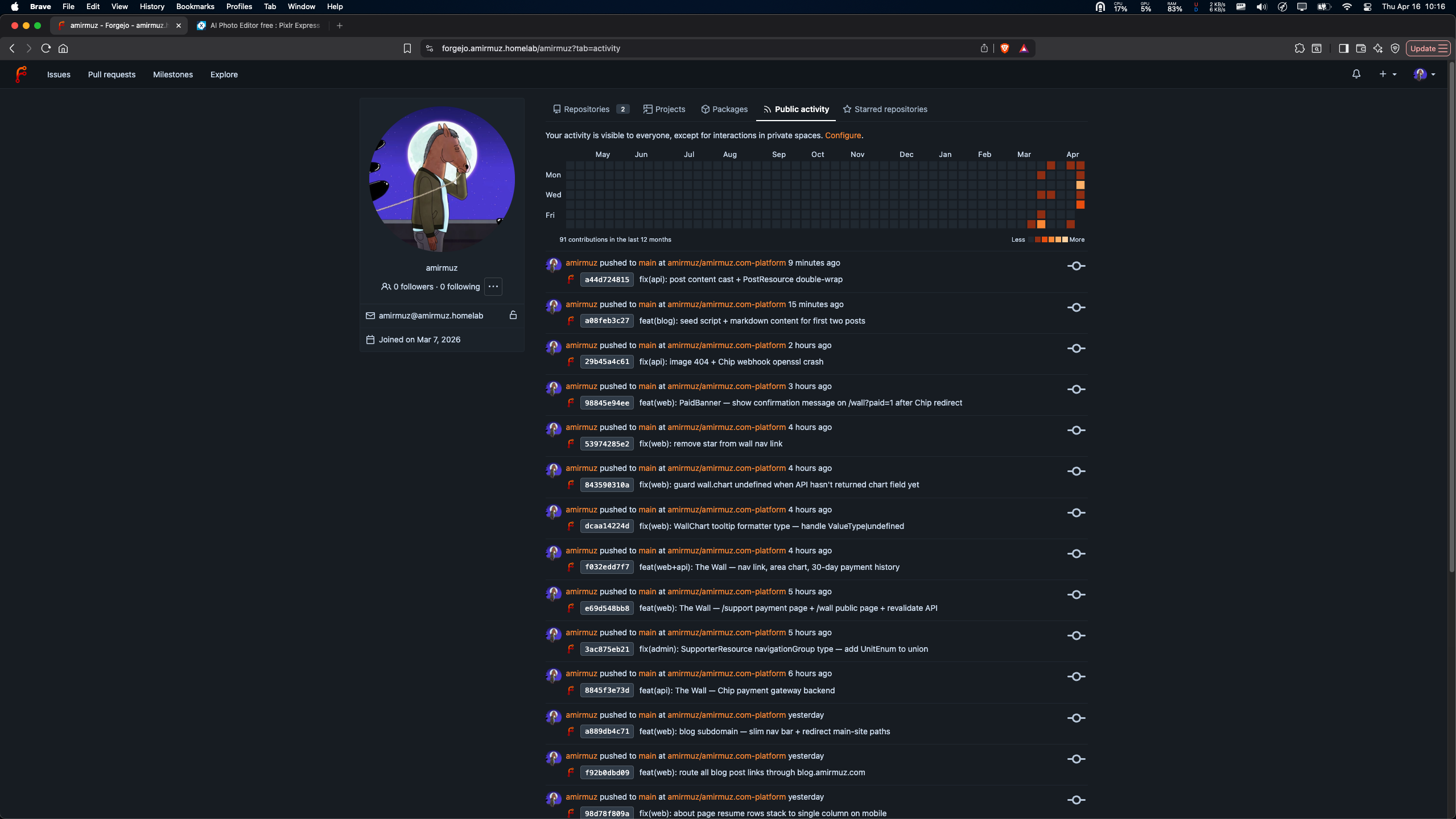
Self-Hosting Forgejo — A Lightweight Git Server on Alpine Linux
Date: 2026-03-07 Series: Homelab Services Difficulty: Intermediate Time to complete: 2-3 hours
The Situation
Every homelab eventually needs a private Git server. You don't want to push personal projects, infrastructure configs, or internal scripts to GitHub. That stuff belongs at home.
I already had Gitea running as a container (CT 200) in my homelab. Gitea is great — but recently the community forked it into Forgejo. The reason matters: Gitea's governance had been shifting toward a single company's control. Forgejo was the community's answer. Fully open source, community-governed, actively maintained, and fully compatible with Gitea's API.
So I decided to replace it. This post walks through how I deployed Forgejo on an Alpine Linux container, wired it up to a remote PostgreSQL database, set up NGINX as a reverse proxy, and debugged a surprisingly fun three-layer failure before everything came together.
Why Forgejo Over Gitea?
Think of it like this: imagine a popular open-source recipe book. The original author starts a company and slowly starts locking premium recipes behind a paywall. The community decides to take the original recipe book, make a clean copy, and keep it free forever. That's Forgejo.
Practical reasons to choose Forgejo:
- Community-governed — decisions are made in the open
- Drop-in replacement — same API, same features, same web interface
- Actively developed — regular releases, security patches
- Lightweight — runs comfortably on 512MB RAM
Architecture
Before touching anything, here's the high-level picture of what we're building:
                        Your Browser
                             |
                          HTTPS :443
                             |
                    +------------------+
                    |  alpine-proxy    |  <-- NGINX reverse proxy
                    |  (DMZ zone)      |  <-- TLS terminates here
                    |  forgejo.your-  |
                    |  domain.homelab  |
                    +------------------+
                             |
                       HTTP :3000
                       (internal)
                             |
                    +------------------+
                    |  alpine-forgejo  |  <-- Forgejo app
                    |  (SERVERS zone)  |  <-- Alpine 3.21 CT
                    +------------------+
                             |
                      PostgreSQL :5432
                             |
                    +------------------+
                    |   debian-db-01   |  <-- PostgreSQL 16
                    |   (DB zone)      |  <-- Remote database server
                    +------------------+
Traffic flow:
- Your browser hits
forgejo.your-domain.homelabover HTTPS - NGINX on
alpine-proxyterminates TLS, forwards the request over plain HTTP to Forgejo - Forgejo processes it, talks to PostgreSQL on the remote DB server
- Response travels back the same path
NGINX handles the TLS certificate. Forgejo never needs to know about certs. The connection between NGINX and Forgejo is internal-only — no TLS needed there.
Container Setup
Forgejo runs as an LXC container. Here's what I used:
| Setting | Value |
|---|---|
| OS | Alpine 3.21 |
| Storage | ceph-pool (3x replicated, Ceph cluster) |
| vCPUs | 2 |
| RAM | 512 MB |
| Network | VLAN 2921 (SERVERS zone) |
| IP | x.x.x.x (assign a static IP) |
| SSH port | 2917 |
Why Ceph storage? Because containers on Ceph can live-migrate between Proxmox nodes without downtime. If one node goes down, the container comes back up elsewhere. For a Git server you actually use daily, that matters.
Why Alpine? It's tiny. The base image is under 10MB. For a service like Forgejo that doesn't need a full OS environment, Alpine is perfect. Just enough Linux to run the app.
Step 1 — Install Forgejo
SSH into your new Alpine container, then:
apk update
apk add forgejo
That's it. Alpine's community repository includes Forgejo as a first-class package. No downloading binaries, no curl-pipe-to-bash installers, no manual systemd unit files. One command.
This also installs:
- The
forgejobinary at/usr/bin/forgejo - A
gituser and group - An OpenRC service definition (Alpine's init system, similar to systemd)
- Default config scaffolding at
/etc/forgejo/
Check it installed correctly:
forgejo --versionStep 2 — PostgreSQL Backend
Forgejo can use SQLite (built-in, zero config) but for anything serious, use PostgreSQL. SQLite is fine for a single user tinkering — PostgreSQL handles concurrent access, backups, and growth properly.
I have a dedicated database server (debian-db-01) running PostgreSQL 16 in my DB zone. Here's how I set up the Forgejo database on it.
On the PostgreSQL server:
-- Create a dedicated user for Forgejo
CREATE USER forgejo WITH PASSWORD 'your_strong_password_here';

-- Create the database owned by that user
CREATE DATABASE forgejo OWNER forgejo;

-- Grant all privileges
GRANT ALL PRIVILEGES ON DATABASE forgejo TO forgejo;
Then edit /etc/postgresql/16/main/pg_hba.conf to allow connections from the Forgejo container:
# TYPE  DATABASE  USER      ADDRESS              METHOD
host    forgejo   forgejo   x.x.x.x/32          scram-sha-256
Replace x.x.x.x with your Forgejo container's IP. Without this line, PostgreSQL silently rejects the connection — it won't even log a clear error. It just says "no pg_hba.conf entry found."
Reload PostgreSQL after the change:
systemctl reload postgresqlOne important lesson about passwords here: if you set the PostgreSQL password in a shell command, avoid the $ character. The shell treats $ as the start of a variable and silently expands it. So My$SecurePass becomes MySecurePass or something worse — and then PostgreSQL authentication fails with a message that tells you nothing useful. Use single quotes when setting passwords at the CLI, or better yet, avoid $ in passwords you set via shell entirely.
Step 3 — Configure Forgejo
Forgejo's configuration file lives at /etc/forgejo/app.ini. Here's a working minimal config:
APP_NAME = Forgejo
RUN_USER = git
RUN_MODE = prod

[database]
DB_TYPE  = postgres
HOST     = x.x.x.x:5432
NAME     = forgejo
USER     = forgejo
PASSWD   = your_strong_password_here
SSL_MODE = disable

[repository]
ROOT = /var/lib/forgejo/repositories

[server]
DOMAIN         = forgejo.your-domain.homelab
HTTP_PORT      = 3000
ROOT_URL       = https://forgejo.your-domain.homelab/
DISABLE_SSH    = false
SSH_PORT       = 22
START_SSH_SERVER = true
LFS_START_SERVER = true

[security]
INSTALL_LOCK = true
SECRET_KEY   = generate-a-long-random-string-here
INTERNAL_TOKEN = generate-another-long-random-string-here

[service]
DISABLE_REGISTRATION = true

[log]
MODE      = file
LEVEL     = info
ROOT_PATH = /var/log/forgejo
A few things worth noting:
SSL_MODE = disable — This is the connection between Forgejo and PostgreSQL. Both are on internal networks. No need for TLS here. Setting this to require when your PostgreSQL isn't configured for TLS will cause connection failures.
DISABLE_REGISTRATION = true — This is your private server. You don't want strangers creating accounts. Set this immediately.
INSTALL_LOCK = true — Skips the web-based setup wizard on first launch. Without this, anyone who hits your server URL first gets to run the installer.
Generate random strings for SECRET_KEY and INTERNAL_TOKEN:
# Generate a 64-character random string
tr -dc 'A-Za-z0-9' </dev/urandom | head -c 64; echo
Set correct ownership:
chown -R git:git /etc/forgejo
chown -R git:git /var/lib/forgejo
chown -R git:git /var/log/forgejo
Step 4 — Start Forgejo
rc-service forgejo start
rc-update add forgejo default
The first command starts it now. The second makes it start automatically on every boot.
Check it:
rc-service forgejo statusImportant caveat: OpenRC says "started" even if the process crashed immediately after launch. This tripped us up. "Started" means OpenRC tried to start it — not that it's actually running.
Always follow up with:
ps aux | grep forgejoIf you see the process, you're good. If not, check the logs:
tail -f /var/log/forgejo/forgejo.logStep 5 — NGINX Reverse Proxy
Forgejo runs on port 3000 by default. We expose it to the network through NGINX, which handles TLS termination. Think of NGINX as the receptionist — it's the face everyone sees, and it handles security (the TLS handshake). Forgejo is the back office that does the actual work.
On alpine-proxy (your NGINX server), add a new server block:
server {
    listen 443 ssl;
    server_name forgejo.your-domain.homelab;

    ssl_certificate     /etc/nginx/ssl/wildcard.crt;
    ssl_certificate_key /etc/nginx/ssl/wildcard.key;

    # Optional: restrict access to admin network only
    # include /etc/nginx/http.d/includes/admin-only.conf;

    location / {
        proxy_pass         http://x.x.x.x:3000;
        proxy_set_header   Host              $host;
        proxy_set_header   X-Real-IP         $remote_addr;
        proxy_set_header   X-Forwarded-For   $proxy_add_x_forwarded_for;
        proxy_set_header   X-Forwarded-Proto $scheme;
    }
}

# Redirect HTTP to HTTPS
server {
    listen 80;
    server_name forgejo.your-domain.homelab;
    return 301 https://$host$request_uri;
}
Replace x.x.x.x with your Forgejo container's IP.
The proxy_set_header lines are important. Without them, Forgejo sees all traffic as coming from the NGINX proxy IP, not from the real client. The headers pass through the original client information so Forgejo can log it correctly and generate proper links.
Test the NGINX config before reloading:
nginx -tIf it says "syntax is ok" and "test is successful", reload:
rc-service nginx reloadStep 6 — DNS Record
Add an explicit A record for forgejo.your-domain.homelab pointing to your NGINX proxy IP.
You might already have a wildcard DNS record (*.your-domain.homelab) that would match. Don't rely on it. Always create explicit A records for real services.
Why? Wildcard DNS is convenient for quick testing but it can mask typos, mask misconfigurations, and makes your DNS less auditable. An explicit record is clearer, more predictable, and easier to manage.
In your BIND9 zone file:
forgejo IN A x.x.x.x ; NGINX proxy IP
Reload BIND9 after adding the record:
rndc reload your-domain.homelabVerify it resolves:
dig forgejo.your-domain.homelabThe 502 Debug Journey
It never works first try. Here's what happened and how we fixed it.
After setting everything up, hitting https://forgejo.your-domain.homelab returned a 502 Bad Gateway. NGINX couldn't reach the backend.
We had a three-layer problem. Working through them one by one:
Layer 1 — Wrong Certificate Path
The NGINX config had:
ssl_certificate /etc/nginx/certs/wildcard.crt;But the actual cert was at:
/etc/nginx/ssl/wildcard.crt
NGINX was failing silently — it wouldn't reload cleanly, which meant the server block wasn't active. The fix was straightforward once we actually checked the path.
Lesson: Always verify your cert file paths exist before debugging anything else. ls -la /etc/nginx/ssl/ takes two seconds.
Layer 2 — Missing pg_hba.conf Entry
Forgejo started but immediately crashed. The log showed:
[E] Failed to initialize ORM engine: pq: no pg_hba.conf entry for host "x.x.x.x", user "forgejo", database "forgejo", no encryption
PostgreSQL was rejecting the connection because there was no rule allowing it. We had created the database and user but forgot the pg_hba.conf entry. Added the line, reloaded PostgreSQL, Forgejo connected.
Lesson: PostgreSQL doesn't tell the connecting client why it rejected it — it just says "connection rejected." The detail is in the PostgreSQL logs on the server side. Check there first.
Layer 3 — Password with Special Characters
Forgejo started, connected to PostgreSQL, but authentication failed:
[E] pq: password authentication failed for user "forgejo"
The password was correct — we set it ourselves. But it contained a $ character. When we ran the CREATE USER command in a shell script, the shell expanded $var in the middle of the password string. PostgreSQL received a different password than we intended.
The fix: set a new password without $ characters, and set it directly in psql (not via a shell script that might interpolate variables).
ALTER USER forgejo WITH PASSWORD 'new-password-without-dollar-signs';Lesson: Shell expansion is silent and ruthless. Single-quote your passwords when using them in CLI commands. Better yet, avoid $ in passwords you'll ever set through a shell.
The Alpine Gotcha: It Really Is Minimal
One more thing worth mentioning. The Alpine LXC template in Proxmox is extremely minimal. It doesn't include:
openssh— you needapk add opensshbefore any SSH hardeningbash— the default shell isash(BusyBox)ssornetstat— usenetstatfromnet-toolspackage, or just check withps aux- Various standard tools you'd expect on Debian or Ubuntu
This tripped us up when we tried to do SSH hardening on a fresh container before installing OpenSSH. The commands existed nowhere.
If you're following the same SSH hardening steps from a previous guide (adding your key, disabling password auth, changing the port), do this first:
apk add openssh
rc-service sshd start
rc-update add sshd default
Then harden.
Verify Everything Works
With all layers in place, do a quick end-to-end test:
# From your admin machine — test NGINX reaches Forgejo
curl -I https://forgejo.your-domain.homelab

# Should return: HTTP/2 200 (or a redirect to the login page)
Then open the URL in a browser. You should see the Forgejo login page.
Create your admin account:
# On the Forgejo container
forgejo admin user create \
  --username admin \
  --password 'your-admin-password' \
  --email [email protected] \
  --admin
Log in, verify the dashboard loads, create a test repository, push a commit. If all that works — you're done.
Full Checklist
[ ] Alpine CT created (2 cores, 512MB, VLAN 2921)
[ ] apk add forgejo
[ ] PostgreSQL DB + user created on remote server
[ ] pg_hba.conf entry added + PostgreSQL reloaded
[ ] /etc/forgejo/app.ini configured (DB, server, security)
[ ] File ownership: git:git for /etc/forgejo, /var/lib/forgejo, /var/log/forgejo
[ ] rc-service forgejo start + rc-update add forgejo default
[ ] ps aux confirms forgejo is actually running
[ ] NGINX server block added (correct cert paths!)
[ ] nginx -t passes, nginx reloaded
[ ] DNS A record added + resolves correctly
[ ] HTTPS loads the Forgejo login page
[ ] Admin user created
[ ] Test repo push succeeds
What We Learned
1. Three-layer debugging order: always backend-first
When a web service returns 502, the instinct is to stare at the proxy config. Resist that. Work from the inside out: DB first, then app, then proxy, then browser. Most problems live at layer 1 or 2, not layer 3.
2. "Started" doesn't mean "running" in OpenRC
rc-service X status tells you what OpenRC thinks. ps aux | grep X tells you what's actually happening. Always check both.
3. Shell expansion silently corrupts passwords
The $ character is variable expansion in bash and ash. A password like Pass$word becomes Password (or something worse) when passed through a shell. Use single quotes, or avoid $ in passwords set via CLI.
4. Alpine minimal is genuinely minimal
No OpenSSH, no bash, no ss, no netstat. Plan accordingly. Before hardening, install the things you're about to harden.
5. Explicit DNS records over wildcard reliance
Wildcard DNS is convenient for testing. For production services, always add an explicit A record. It's auditable, predictable, and won't surprise you six months later.
6. pg_hba.conf is PostgreSQL's guestlist
Creating a database and user isn't enough. If the host isn't on the guestlist in pg_hba.conf, PostgreSQL won't even attempt authentication — it just rejects the connection. Always add the host entry and reload after.
What's Next
With Forgejo running, the next step is to actually use it:
- Mirror existing repos from GitHub/GitLab
- Set up SSH key authentication for git push/pull
- Configure Forgejo webhooks to trigger CI/CD pipelines
- Regular PostgreSQL backups via pgdump
Forgejo also supports acting as a container registry and package registry — useful if you want to go further down the self-hosting path.
Part of the Homelab Infrastructure Series. Previous: Monitoring Stack with VictoriaMetrics + Grafana.